
If you’re wondering why certain pages on your website, like blog posts or product pages, aren’t performing well online, the issue may not be the content itself.
In many cases, those pages are simply invisible to search engines. That’s why it’s important to understand how to find orphan pages and make sure they are properly connected to your site.
In this article, you’ll learn what orphan pages are, how to find and fix them, and why fixing orphan pages is essential for your SEO performance in the first place.
What Are Orphan Pages?
Orphan pages are pages on your website that have no internal links pointing to them from any other part of your site.
It is like you are creating an internal document and saving it somewhere no one can access via normal navigation. The document exists, but others can only find it if you share its link directly.
And the issue of having orphan pages on your website may have an impact on your website’s SEO performance.
Why You Should Find and Fix Orphan Pages?
Imagine you have a new page on your website, but there are no internal links from other pages pointing to it (maybe you just forgot, it happens). And if the page is not included in your sitemap and has no backlinks from other websites, you are making it much harder for search engines to find and index your page. In this case, how will Google or users discover that the page even exists?
Your page will turn into a ghost wandering online. It is there, but it is not seen.
So, there are two main reasons why finding and fixing orphan pages is important for your website’s SEO:
- It helps search engines discover, crawl, and index your pages more effectively
- It improves user experience by making it easier for visitors to navigate your website and find the content they need
- A proper internal linking strategy helps search engines better trust your website, which can lead to improved visibility and performance in search results.
The importance of internal links is obvious, and Google explains it best:
“You may usually think about linking in terms of pointing to external websites, but paying more attention to the anchor text used for internal links can help both people and Google make sense of your site more easily and find other pages on your site. Every page you care about should have a link from at least one other page on your site. Think about what other resources on your site could help your readers understand a given page on your site, and link to those pages in context.”
And Finally, Here is How to Find Orphan Pages
Given the importance of fixing orphan pages on your site, let’s now look at the practical steps to find them.
-
Manual Google Search
The first method for finding orphan pages on your website is to search manually using a simple Google search. While this approach can be time-consuming, it works well for smaller websites with a limited number of pages.
To start, you can review your sitemap data. In most cases, you can access it by typing example.com/sitemap.xml into your browser. If your site doesn’t have one, you can generate a sitemap using online tools or plugins.
- Once you have your sitemap, go through the listed URLs and check whether those pages are internally linked from other parts of your website. If you find pages that appear in the sitemap but cannot be reached through internal links, they may be orphan pages or at least poorly linked pages.
Note: Keep in mind that a sitemap does not always include every page on your website, so this method may not catch all orphan pages.
- Another manual approach is to use type site:example.com into Google to see a list of indexed pages. From the results, pick a page, such as a blog post or product page, and try to locate it on your website.
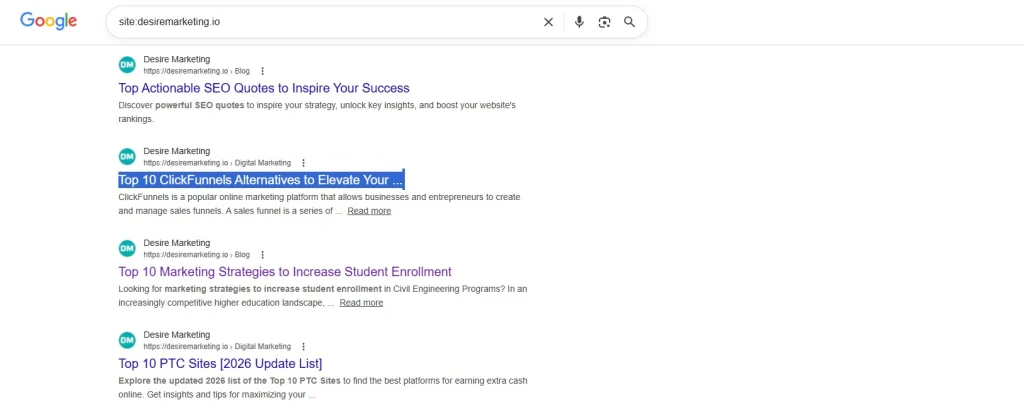
Start from your homepage and follow these steps:
- Check the main menu (navigation bar) and browse through relevant sections like blog, services, or products
- Use the internal search bar, if available, to search for the page title
- Open the relevant category or listing pages and scan for the page
- Use the Ctrl + F (or Cmd + F) shortcut on those pages to quickly search for the title

If you cannot find the page through normal navigation or search, it may be an orphan page or a page with very weak internal linking.
Note: Since these methods rely on manual checking, they are best used to identify potential orphan pages rather than provide a complete and fully accurate list.
-
Using SEO Tools
Now, if your website is much bigger for a manual check and the page structure is more complex, you can use professional SEO tools to find orphan pages. Tools like Ahrefs, Screaming Frog, or Semrush are among the most popular ones to help you with this task.
Let’s see how Ahrefs Site Audit can help you find orphan pages on your website.
First and foremost, you need to set up an Ahrefs account. After logging in to your account:
- Go to the Site Audit section and follow the instructions to run a new audit project. This is a great tool to run scheduled SEO audits on your website.
- After the audit is completed, go to Tools > Page Explorer
- In the Links filter, hit Orphan pages to see the list of orphan pages on your website that Ahrefs has managed to identify.
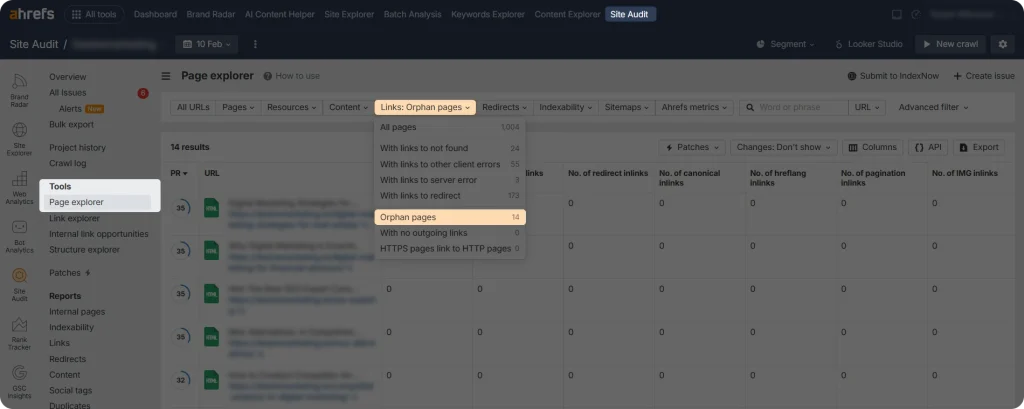
Note: These are only the pages included in your sitemap or that have a backlink profile. Otherwise, Ahrefs doesn’t have the data on your orphan pages (and neither does Google.)
-
Fixing Orphan Pages
As mentioned, orphan pages are pages that have no internal links pointing to them from other parts of your website. The most logical way to fix them is to add at least one relevant internal link.
However, depending on the type of page, its further importance, and how it was created, there are other ways to handle orphan pages as well.
So, here are some of the most common solutions to fixing orphan pages:
- Adding internal links: Make sure to add at least one relevant internal link pointing to your orphan page. Ideally, link to it from pages with organic traffic or closely related in topic, such as blog posts, category pages, or your homepage. Use clear, descriptive anchor text so both users and search engines understand what the page is about. If the page is important, consider adding multiple internal links to improve its visibility and accessibility.
- Redirecting: If the orphan page is no longer needed or contains outdated information, consider redirecting it to a more relevant, updated page using a 301 redirect. This is especially important if the page has backlinks, as redirects help preserve the SEO value instead of losing it.
- Deleting: If the orphan page no longer provides value, has no backlinks, and is not needed for your website, deleting it can be the best option. This helps keep your site clean and focused, without unnecessary pages.
Additionally, make sure to conduct regular site SEO audits to identify not only orphan pages but also other SEO issues on your website. Addressing these problems early can help improve your site’s overall performance in search engine results.
Final Thoughts
Website maintenance should be a top priority if you want your site to perform well online, and preventing orphan pages is an important part of that process. Once you understand how to find orphan pages, the rest comes down to consistent planning.
With a well-structured internal linking strategy and proper use of redirects, you can prevent orphan pages from appearing and ensure your website structure stays easy to navigate for both users and search engines.